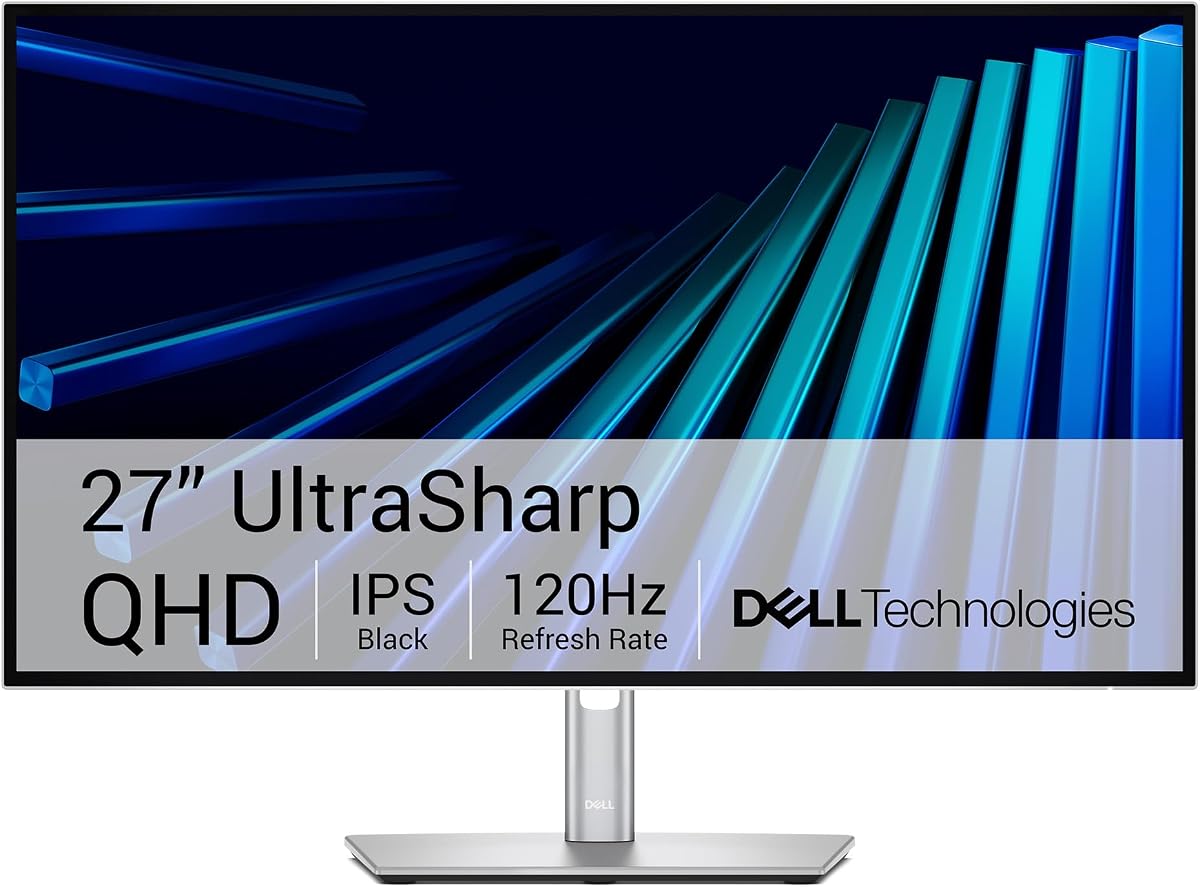
Dell UltraSharp 27 Thunderbolt Hub Monitor
5.0Editor score
98% Display P3 coverage
Factory calibrated accuracy
Built-in KVM switch
Finding the perfect display for your Apple laptop requires careful consideration of resolution, color gamut, and connectivity options. A great monitor enhances productivity and creative work by providing crisp visuals and seamless integration with macOS features.
We have analyzed ten highly-rated models to create this comprehensive list. Our comparison focuses on key attributes like USB-C power delivery, refresh rates, and panel technology to help you find the ideal match for your workflow.
Each selection in this guide highlights specific strengths and ideal use cases for different users. Please note that availability and pricing can change frequently, so verify current details before making your final purchasing decision today.
5.0Editor score

4.3Editor score

4.6Editor score
As an Amazon Associate we earn from qualifying purchases.
The following table provides a side-by-side comparison of all ten selected models to help you quickly identify the specifications that matter most for your specific MacBook Pro setup and usage needs.



This top-rated model stands out as a perfect companion for professional Mac users seeking high-end performance. It features factory-calibrated color accuracy with 98% Display P3 coverage to ensure your work looks true to life.
We may earn a commission when you buy through this link, at no additional cost to you.
The display offers a smooth 120Hz refresh rate which makes transitions seamless and every detail sharper. It includes a built-in KVM switch to let you control two machines with one keyboard and mouse.
While the price is higher than average options, the investment pays off in precision and productivity. Users appreciate the refined look that fits well in any executive or creative workspace setting.
If you are a designer or executive needing reliability and stunning visuals, this monitor is the top recommendation. It consistently delivers a clean refined look for any space.
The factory calibration ensures that your photos and videos look exactly as intended straight out of the box.
KVM switch technology allows you to switch between a laptop and a work device using a single keyboard and mouse.
We may earn a commission when you buy through this link, at no additional cost to you.
This monitor is explicitly calibrated for MacBook with BenQ exclusive color tuning to offer a vibrant P3 wide color gamut. It allows you to adjust brightness and volume directly from your MacBook keyboard for seamless control.
We may earn a commission when you buy through this link, at no additional cost to you.
Connecting via a single USB-C cable expands your MacBook display capabilities effectively. The dual USB-C ports deliver 90W for your laptop and 15W to charge your iPad or iPhone simultaneously.
The versatility of the stand lets you adjust height, tilt, swivel, and pivot for maximum comfort. This model bridges the gap between premium Mac accessories and standard monitor functionality.
Mac users who want native integration without dongles will find this option highly satisfying. The dedicated controls and color tuning make it a standout choice for Apple enthusiasts.
Integrated MacBook Controls let you adjust brightness and volume directly from your MacBook keyboard easily.
Dual USB-C ports deliver 90W for your MacBook while charging other devices like iPad or iPhone simultaneously.
We may earn a commission when you buy through this link, at no additional cost to you.
For those seeking a budget-friendly option without sacrificing visual clarity, this Philips monitor delivers crisp Full HD 1920×1080 visuals. It is designed to make the screen look bigger with its minimalistic design.
We may earn a commission when you buy through this link, at no additional cost to you.
The VA panel produces brighter whites and deeper blacks for true-to-life images and more gradients. The virtually bezel-free design on three sides allows for seamless multi-monitor setups to boost productivity.
While it lacks the high-end features of premium models, it excels in value and basic performance. The EasyRead mode provides a paper-like experience that is helpful for viewing lengthy documents.
Students and casual users looking for a reliable secondary display will find this model a smart buy. It provides consistent colors and a clean aesthetic at a very accessible price point.
Virtually bezel-free on three sides so the screen looks even bigger for the viewer and workflows are seamless.
EasyRead mode provides a more paper-like experience for when viewing lengthy documents during work sessions.
We may earn a commission when you buy through this link, at no additional cost to you.
This monitor reproduces clear images and vibrant colors with up to 95% DCI-P3 color gamut expression. It is compatible with VESA DisplayHDR 400 to support specific levels of color and brightness that exceed ordinary monitors.
We may earn a commission when you buy through this link, at no additional cost to you.
The USB Type-C port handles data transfer and power delivery up to 90W so you can forget adapters. Built-in stereo speakers equipped with Waves MaxxAudio make games and movies come to life with bold sound.
The Switch app transforms your screen into a multitasking hub where you can split the screen into up to 6 sections. You can also switch seamlessly between your PC and the built-in webOS streaming platform.
Users looking for a display that doubles as a media center will appreciate the integrated features. The ergonomic stand makes it easy to flexibly adjust the screen for the optimal position.
Enjoy more ways to connect with USB Type-C for data transfer and power delivery up to 90W.
Built-in stereo speakers equipped with Waves MaxxAudio make your games and movies come to life.
We may earn a commission when you buy through this link, at no additional cost to you.
The FHD resolution and 1500:1 contrast ratio bring clarity to your daily tasks. A 144Hz refresh rate and 1ms Moving Picture Response Time deliver a smooth tear-free viewing experience.
We may earn a commission when you buy through this link, at no additional cost to you.
Prioritize visual comfort with this 4-star TÜV-certified display that reduces harmful blue light emissions. You can adjust your monitor to suit your preference throughout the day for better ergonomics.
Integrated dual 3W speakers deliver a wider range of frequencies so you can hear the audio difference. The Dell Display and Peripheral Manager application optimizes the performance of your workspace.
This model is ideal for professionals who prioritize eye comfort and smooth visuals. The Ash White finish adds a modern touch to any desk setup.
144Hz refresh rate and 1ms Moving Picture Response Time deliver a smooth tear-free viewing experience.
4-star TÜV-certified display reduces harmful blue light emissions while maintaining stunning image quality.
We may earn a commission when you buy through this link, at no additional cost to you.
This UltraFine display with a 1000:1 contrast ratio displays deeper blacks and vivid colors in UHD clarity. With wide viewing angles, it gives creative professionals the ability to view highly-detailed imagery.
We may earn a commission when you buy through this link, at no additional cost to you.
Explore HDR10 content the way it was meant to be seen with up to 90% DCI-P3 color gamut expression. The borderless design keeps your focused on the screen and looks great on the desktop.
You can customize the workspace by splitting the display or adjusting basic monitor options with just a few clicks. The ergonomic stand makes it easy to flexibly adjust the tilt of the screen.
Creative professionals will appreciate the clarity and color range this model provides. It is a solid choice for those who need reliable performance for daily design tasks.
1000:1 contrast ratio displays deeper blacks and vivid colors in UHD clarity for creative professionals.
Onscreen Control lets you customize the workspace by splitting the display with just a few mouse clicks.
We may earn a commission when you buy through this link, at no additional cost to you.
This Mac-Ready monitor offers 95% P3 and 100% sRGB with an average Delta E ≤ 2 for factory-calibrated color accuracy. It ensures consistent colors across displays with ICCsync to match profiles automatically.
We may earn a commission when you buy through this link, at no additional cost to you.
All-in-one USB-C synchronizes images, videos, and data seamlessly while charging your Mac devices through a single cable. The Nano Matte panel diffuses ambient light to preserve color accuracy and reduce glare.
Adjustments include tilt, pivot, swivel, and height to create a comfortable environment for creativity and productivity. The factory calibration helps reduce time spent on manual color tuning.
Designers and professionals who need consistent color will find this monitor highly beneficial. It offers a robust set of features for a reliable workstation experience.
ICCsync automatically matches and syncs ICC profiles between your Mac and BenQ monitor when switching color modes.
Nano Matte panel diffuses ambient light to preserve color accuracy and reduce glare during long design sessions.
We may earn a commission when you buy through this link, at no additional cost to you.
Experience exceptional picture quality with the 27-inch QHD display featuring IPS technology for vivid visuals. With a 100Hz refresh rate and 5ms response time, screen visuals are rendered clearly for smooth motion.
We may earn a commission when you buy through this link, at no additional cost to you.
Immerse yourself in a world of brilliant color from HDR10 to enhance picture quality. Reader Mode can reduce blue light emission to help provide a reduction in eye fatigue during reading.
Connect to external devices or charge your laptop with the convenience of USB Type-C with up to 15W power delivery. The ultra-slim stand is designed to minimize desk clutter and optimize space.
Casual users looking for a reliable everyday display will find this model meets their needs. It offers a clean and organized work area with a full immersive display.
100Hz refresh rate and 5ms response time render visuals clearly for ultra-smooth motion and fluidity.
Ultra-slim stand designed to minimize desk clutter and optimize space for a cleaner work area.
We may earn a commission when you buy through this link, at no additional cost to you.
The three-sided borderless display brings a clean and modern aesthetic to any working environment. In a multi-monitor setup, the displays line up seamlessly for a virtually gapless view without distractions.
We may earn a commission when you buy through this link, at no additional cost to you.
AMD FreeSync keeps your monitor and graphics card refresh rate in sync to reduce image tearing. The 75Hz refresh rate ensures every frame on screen moves smoothly for fluid scenes without lag.
Advanced eye comfort technology reduces eye strain for less strenuous extended computing. Game Mode adjusts any game to fill your screen with every detail in view for a better experience.
Users needing a large screen for multitasking or casual gaming will appreciate this model. It offers a modern look with features that support extended work sessions comfortably.
Displays line up seamlessly for a virtually gapless view without distractions in a multi-monitor setup.
Eye Saver Mode minimizes emitted blue light and Flicker Free technology removes screen flicker to reduce strain.
We may earn a commission when you buy through this link, at no additional cost to you.
Immerse yourself in breathtaking 4K visuals with in-plane switching technology. The improved ComfortView Plus reduces harmful blue light emissions to all-day comfort without sacrificing color accuracy.
We may earn a commission when you buy through this link, at no additional cost to you.
A smooth tear-free experience with AMD FreeSync Premium creates a captivating experience for work and play. The 1500:1 contrast ratio and HDR readiness deliver excellent depth and detail.
Enjoy more detailed sound with spacious audio featuring greater output power and deeper frequency response. Keep your desk organized and clutter-free with a single USB-C cable up to 65W power delivery.
Those seeking a balance of high resolution and refresh rate will find this model compelling. It delivers excellent visual depth while maintaining a clean organized desk setup.
Improved ComfortView Plus reduces harmful blue light emissions to 35% for all-day comfort.
Keep your desk organized and clutter-free with a single USB-C cable up to 65W power delivery.
We may earn a commission when you buy through this link, at no additional cost to you.
Selecting the right monitor for your MacBook Pro involves evaluating key features that enhance your specific workflow and environment.
Resolution defines the clarity of your text and images. Higher resolutions like 4K are beneficial for design work or viewing detailed media, while QHD or FHD may suffice for general office tasks. The size of the monitor also impacts how much information you can view at once without constant scrolling.
Choose a resolution that matches your daily tasks to balance clarity with performance needs.
For creative professionals, color accuracy is crucial. Look for monitors that cover a high percentage of the DCI-P3 or sRGB color gamuts. Factory calibration ensures that the colors you see on screen match your work accurately which is vital for design and photo editing.
Prioritize monitors with high color coverage and factory calibration for professional creative work.
MacBook Pro models often rely on USB-C ports for connectivity. A monitor with USB-C that supports video and power delivery simplifies your setup by reducing the need for adapters. This single cable solution keeps your workspace clean and connected.
Ensure the monitor supports USB-C with power delivery to match your MacBook capabilities.
A higher refresh rate leads to smoother motion which is beneficial for scrolling and media consumption. Response time affects how quickly pixels change color which can reduce motion blur during fast movements. While 60Hz is standard, 120Hz offers a noticeably smoother experience.
Opt for higher refresh rates if you value fluid motion and responsiveness in your display.
Comfort is essential for long work sessions. Look for stands that allow height, tilt, swivel, and pivot adjustments. Proper positioning helps prevent neck strain and ensures you maintain a healthy posture while working on your laptop.
Select a monitor with an adjustable stand to fit your ergonomic needs comfortably.
Extended screen time can lead to eye fatigue. Features like flicker-free technology and blue light reduction modes help mitigate this strain. These technologies reduce harmful emissions without compromising the color accuracy or visual quality you expect.
Look for eye comfort certifications to protect your vision during extended work hours.
The price of monitors varies widely based on features and brand. Determine how much you are willing to spend and prioritize features that matter most to your use case. A higher budget may allow for better color accuracy or connectivity options that save time in the long run.
Balance your budget with essential features to get the best value for your investment.
Some monitors come with built-in speakers, KVM switches, or streaming capabilities. These extras can enhance functionality but may increase cost. Consider if you need these integrated solutions or if you prefer to use external peripherals instead.
Evaluate additional features to see if they add value to your specific workflow.
Connect your MacBook to the monitor using a compatible cable such as USB-C or HDMI. Ensure the cable supports both video and power if you wish to charge your laptop while working. Select the appropriate display settings on your Mac to match the monitor resolution.
Adjust the brightness and color settings to match your environment for better visual comfort. Use the ergonomic stand to position the screen at eye level to reduce strain on your neck and back. Calibrate the colors if the monitor supports it to ensure accuracy.
Keep the screen clean by using a microfiber cloth to gently wipe away dust and smudges. Avoid using harsh chemicals that could damage the screen coating. Turn off the monitor when not in use to conserve energy and extend its lifespan.
For most users, a 4K or QHD resolution is ideal for matching the Retina display quality of MacBook Pro models. Higher resolutions provide sharper text and better space for multitasking. However, QHD remains a strong choice if you prefer larger UI elements.
A USB-C monitor is highly recommended as it allows a single cable to handle video, data, and power. This reduces cable clutter and simplifies your desk setup significantly. It is the most efficient way to connect to modern MacBooks.
Color accuracy ensures that what you see on screen matches your work output which is vital for design and media. Monitors with high DCI-P3 coverage offer truer colors for creative tasks. This helps maintain consistency across different devices and platforms.
A higher refresh rate results in smoother motion and scrolling which can reduce eye strain. While 60Hz is standard, 120Hz offers a noticeable improvement in fluidity. This is particularly useful for media consumption and general productivity.
Yes, MacBook Pro models typically support multiple external displays. You can use a hub or daisy chain compatible monitors to extend your workspace. This setup increases productivity by providing more screen real estate for your applications.
Ergonomic stands allow you to adjust height, tilt, and swivel to find the most comfortable viewing position. This flexibility helps prevent neck and back pain during long work sessions. It ensures the screen is at the optimal angle for your eyes.
Built-in speakers provide a convenient solution for casual media consumption and video calls. They eliminate the need for extra peripherals on your desk. However, audiophiles may prefer external speakers for higher sound quality.
It is good practice to dust your monitor weekly to prevent smudges from building up. Wipe the screen gently with a microfiber cloth to avoid scratches. Cleaning regularly maintains clarity and protects the screen coating.
We have explored ten diverse options ranging from budget-friendly picks to premium professional models. Each monitor offers unique strengths such as color accuracy, refresh rates, and connectivity that cater to different user needs.
Prioritize features that align with your specific work style whether it is creative design or general office productivity. A well-chosen monitor can significantly enhance your workflow and comfort during daily use.
Remember to check current availability and verify all specifications before purchasing. Prices and deals change frequently so staying informed ensures you get the best value for your investment today.